Work and focus
Upgrade a home office in the order you will feel
Fix connection reliability, body fit, lighting, and meeting quality before spending on decorative upgrades.
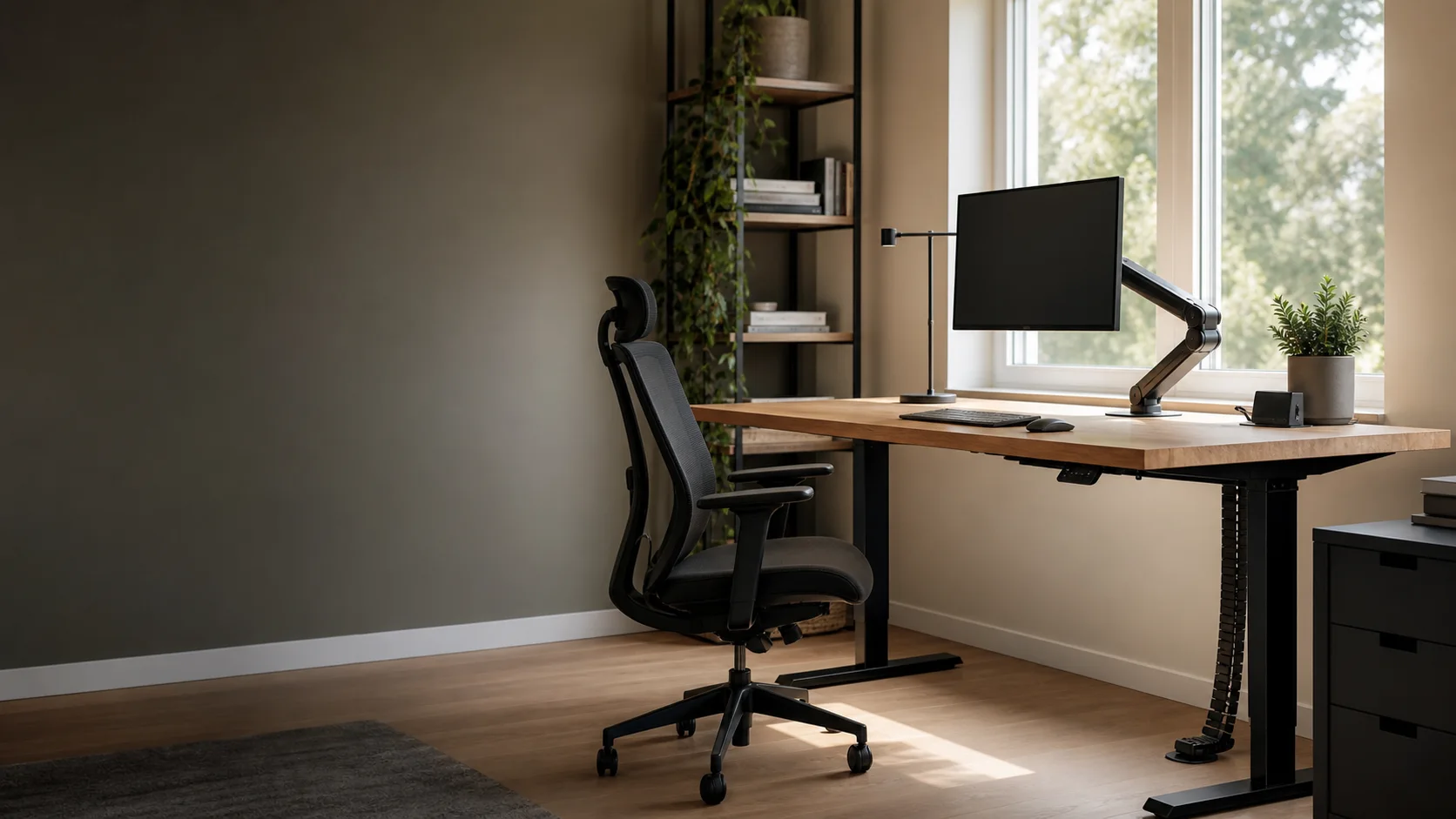
The short answer
The highest-value sequence is usually reliable connectivity, a workstation that fits the user, controllable task lighting, and only then cameras, microphones, docks, and accessories. Solve the interruption that happens every day before optimizing a feature used once a week.
Decision sequence
- Measure recurring friction
- Make the connection dependable
- Fit chair, desk, and display
- Control light and sound
- Add meeting gear last
1. Write down the interruptions for one week
Before shopping, record what actually breaks concentration: calls freezing, a shoulder reaching toward the keyboard, glare after lunch, a laptop running out of ports, or a chair that becomes uncomfortable after an hour.
Frequency matters. A modest fix used five days a week usually creates more value than a premium feature that looks impressive but rarely changes the work.
- How often the problem happens
- How long it interrupts work
- Whether another household member shares the setup
- Whether the solution must move or store away
2. Make the connection boring
Video calls need stability more than an impressive peak speed test. Test the desk at working hours, confirm whether the computer uses Wi-Fi or Ethernet, and identify whether the bottleneck is local coverage, wireless interference, a dock, or the internet service.
Where practical, a wired path to the desk or a properly placed mesh node removes uncertainty from every later camera, audio, and cloud-software decision.
- Run repeated tests at the desk
- Check upload as well as download
- Test the actual dock or USB adapter
- Avoid hiding a mesh node under or behind the desk
3. Fit the workstation to the person
Chair labels such as ergonomic do not guarantee fit. Seat height, depth, armrest range, lumbar shape, desk clearance, and return terms all matter. Adjust the chair and desk around a neutral working position before buying accessories intended to correct a bad base setup.
Place the frequently used input devices close enough that elbows stay near the body. The display should be easy to view without repeatedly bending the neck or leaning forward.
- Feet supported
- Back supported
- Shoulders relaxed
- Keyboard and mouse close
- Display positioned for a neutral head posture
4. Control light before upgrading the camera
A controllable light source often improves both eye comfort and video-call appearance. Position the display to reduce window glare, add task light for documents and keyboard work, and use a soft front light only when meetings need it.
A more expensive webcam cannot compensate for a bright window behind the user or a face lit only by the monitor.
- Check morning and afternoon glare
- Keep task light out of the display reflection
- Use separate work and call lighting when needed
5. Add docks and meeting gear around real ports
List every display, network, charging, storage, camera, and audio connection before choosing a dock. Confirm the laptop's port capabilities and power requirements instead of assuming every USB-C connector supports the same functions.
Choose microphones, speakers, or headsets based on room noise and call frequency. A simple headset can be the better decision in a shared room even when a desk microphone looks cleaner.
Primary references
These sources support the standards and framework used in this guide. Product-specific decisions remain linked to the focused Madabase publications below.